How to Make a Hair Transparent Background in Photoshop
Last updated: June 2026 · Verified against Adobe Photoshop’s 2026 release.
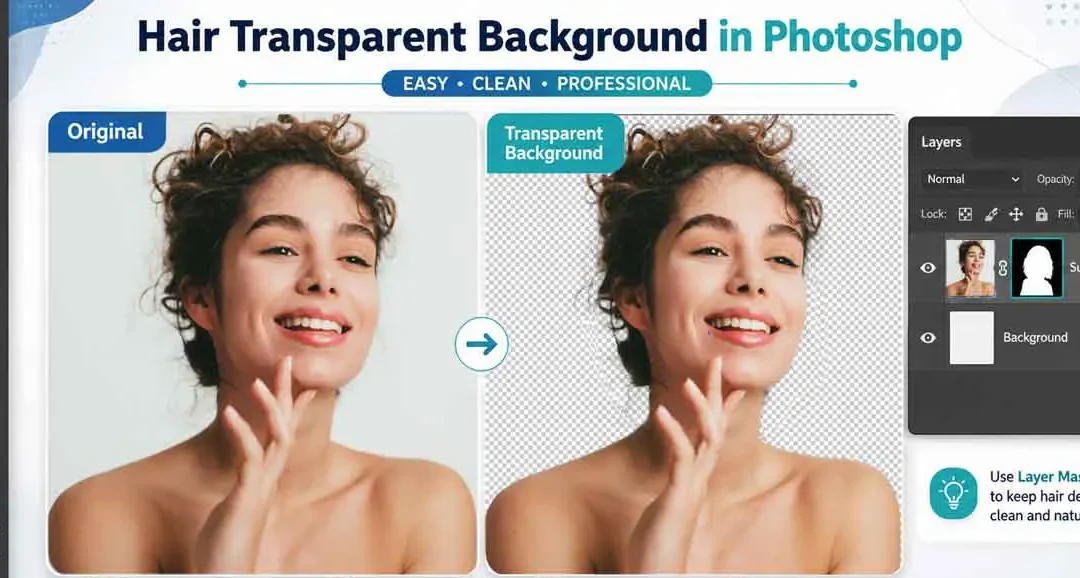
To make a hair transparent background in Photoshop, start with Select Subject. Then open Select and Mask, set Refine Mode to Object Aware for busy backgrounds (or Color Aware for plain ones), refine the hair with the Refine Edge Brush (shortcut R), use Decontaminate Colors to remove fringe, and output the result to a New Layer with Layer Mask. Save the final image as PNG to keep the background transparent.
Hair looks simple until you try to cut it out in Photoshop.
Then the tiny details start fighting back. Fine strands disappear. Soft edges turn rough. A white halo sits around the hair. The image starts to look fake.
You don’t need that stress.
This guide shows you how to remove background from hair in Photoshop using the cleanest workflow. You’ll learn the precise Select and Mask method, the fast Remove Background method, and manual options for difficult images.
You’ll also learn how to save a transparent PNG, fix halos, and decide when professional hair masking makes more sense.
Case Study: High-Quality Hair Masking Service
What Is a Hair Transparent Background?
A hair transparent background is an image where the background behind the hair is removed. The person, model, wig, or product stays visible. The space around the hair becomes clear.


In Photoshop, transparent areas usually show as a gray and white checkerboard. That checkerboard is not part of the final image. It only shows that the background is gone.
This is useful for ecommerce, fashion photos, model images, ads, banners, social graphics, and product layouts. You can place the same hair transparent image on a white, black, colored, or custom background.
The hard part is the hair edge. Hair has soft strands, flyaways, curls, tiny gaps, and color reflections. A rough cutout makes the whole image look cheap.
Best Way to Isolate Hair in Photoshop
The best way to isolate hair in Photoshop is to use Select Subject with Select and Mask. Then refine the edge with the Refine Edge Brush or Refine Hair.
This method works because Photoshop handles the first selection. Then you control the fine strands by hand.
Use this workflow for:
- Portrait hair
- Model photos
- Male hair transparent background edits
- Curly hair
- Blonde hair
- Black hair
- Flyaway hair
- Hair with transparent background
- Ecommerce photos with soft edges
- Photoshop background removal hair work
For simple images, Remove Background may be enough. For busy images, use Channels or professional image masking.
Step-by-Step Guide to Isolate Hair in Photoshop
Isolating hair in Photoshop means separating fine strands from the background without making the edge look rough. The cleanest method is Select Subject plus Select and Mask. Then use the Refine Edge Brush to recover flyaway hair.
Step 1: Make a Selection with Select Subject
Open your image in Photoshop and unlock the background layer.
Go to Select > Subject. Photoshop will create a first selection around the person or object. You can also use the Quick Selection Tool (W) if you want more control.
This first selection does not need to be perfect. It only gives Photoshop a starting point.
Step 2: Open Select and Mask
With the subject selected, go to Select > Select and Mask.
You can also use Ctrl + Alt + R on Windows or Cmd + Option + R on Mac.
This opens the Select and Mask workspace. It helps you clean soft edges, hair strands, and transparent details.
Step 3: Preview the Hair on Black or White
In the Properties panel, change the View Mode to On Black or On White.
Pick the view that shows the hair edge clearly. Dark hair is easier to check on white. Light hair is easier to check on black.
This step helps you spot missing strands, rough edges, color spill, and leftover background pixels.
Step 4: Paint the Hair with Refine Edge Brush
Select the Refine Edge Brush Tool from the left toolbar.
Paint gently around the hairline, curls, and flyaway strands. Focus only on areas where the background shows through the hair.
Photoshop will rebuild the soft hair edge as you paint. Use short strokes for better control.
Step 5: Use Refine Hair for Flyaway Strands
Click Refine Hair inside the Select and Mask workspace.
This helps Photoshop detect fine strands and soft edges. It works well on portraits, fashion images, model photos, and hair with clear contrast.
Still check the result by eye. Refine Hair helps, but manual cleanup gives the final polish.
Step 6: Remove Fringe with Decontaminate Colors
Scroll down to Output Settings in the Properties panel.
Check Decontaminate Colors if you see a white, green, blue, or gray edge around the hair. Start around 50% and increase toward 80% only if the fringe stays visible.
Don’t push it too far. Too much color cleanup can make hair look flat or dull.
Step 7: Output to New Layer with Layer Mask
Set Output To as New Layer with Layer Mask.
Click OK.
This keeps the edit non-destructive. Photoshop hides the old background instead of deleting your original pixels.
Step 8: Verify the Transparent Background
Create a new layer under your subject.
Fill it with a bright color using the Paint Bucket Tool. Green, blue, or pink works well.
This color check makes hidden background pixels easy to see. Remove or hide the color layer before export.
Step 9: Save the Hair Cutout as PNG
Hide the original background layer.
Go to File > Save a Copy or File > Export and choose PNG.
PNG keeps the transparent background. JPEG does not.
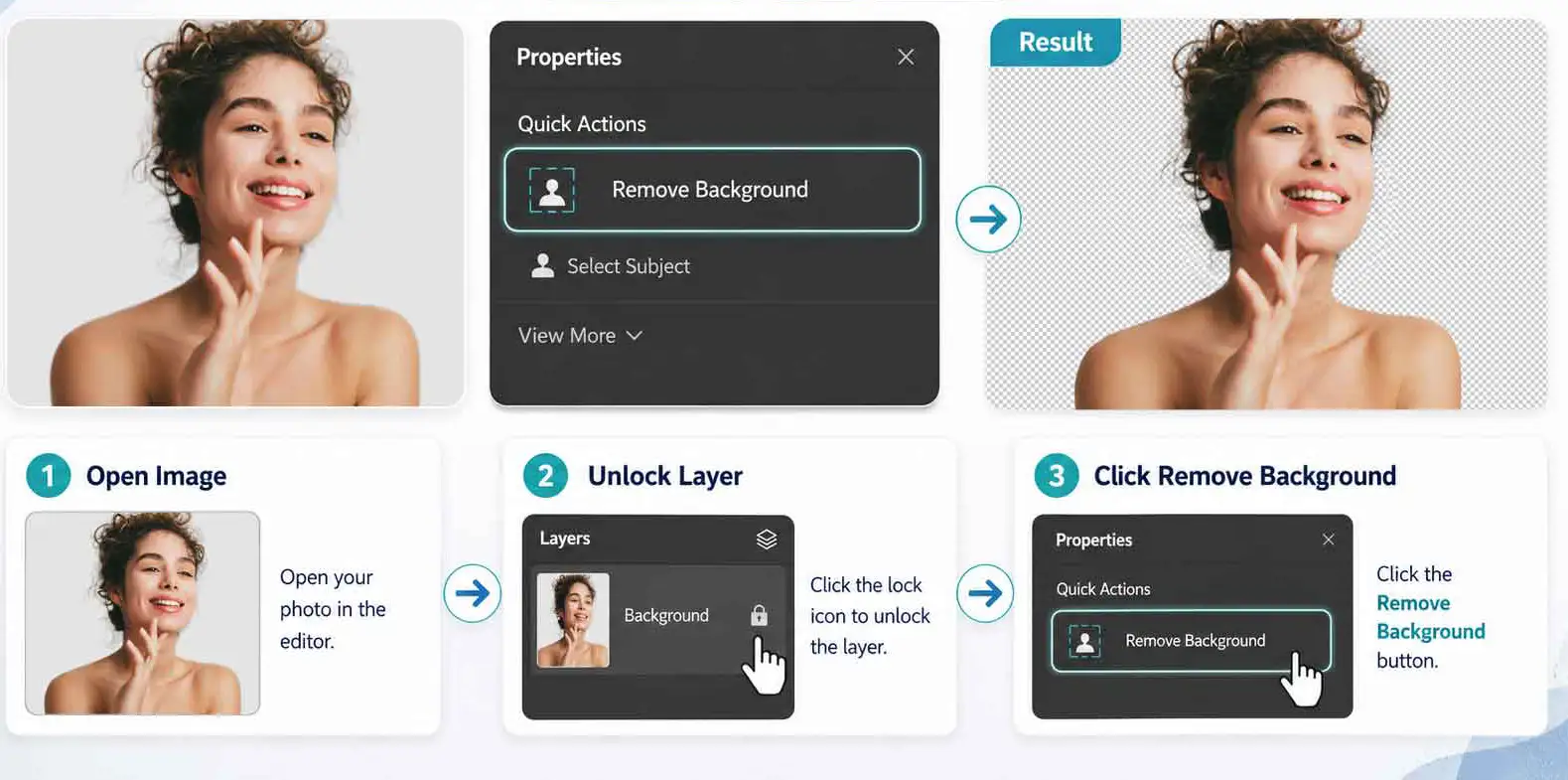
Method 1: Remove Background Quick Action
Remove Background is the fastest way to clear background from an image in Photoshop. It works best when the subject has strong contrast from the background.
Use this method when the background is plain, clean, or high contrast. It’s great for quick transparent Photoshop hair edits.
Step 1: Open and Unlock Your Image
Open Photoshop and go to File > Open.
Choose the model photo or product image you want to edit. Pick a photo where the hair is sharp and visible.
If the layer is locked, click the lock icon in the Layers panel. Photoshop needs an unlocked layer so the background can become transparent.
Step 2: Open the Properties Panel
Go to Window > Properties.
Select the image layer first. Then look for Quick Actions in the Properties panel.
You should see Remove Background.
Step 3: Click Remove Background
Click Remove Background.
Photoshop will detect the subject and hide the background with a layer mask. This is safer than deleting pixels.
Your original image stays protected. You can edit the mask anytime.
Step 4: Check the Hair Edges
Zoom in to 100%.
Look around the hairline, flyaways, curls, and soft edges. You may see old background pixels between the strands.
That’s normal. Remove Background is fast, but hair needs extra care. Move to Select and Mask if you see rough edges, missing strands, or color fringe.
Method 2: Background Eraser Tool
The Background Eraser Tool gives you more manual control. It’s slower, but it works well on solid backgrounds.
Use this when you want to remove bg hair by hand. It also helps when AI tools leave messy areas.
Step 1: Duplicate the Layer
Press Ctrl + J on Windows or Cmd + J on Mac.
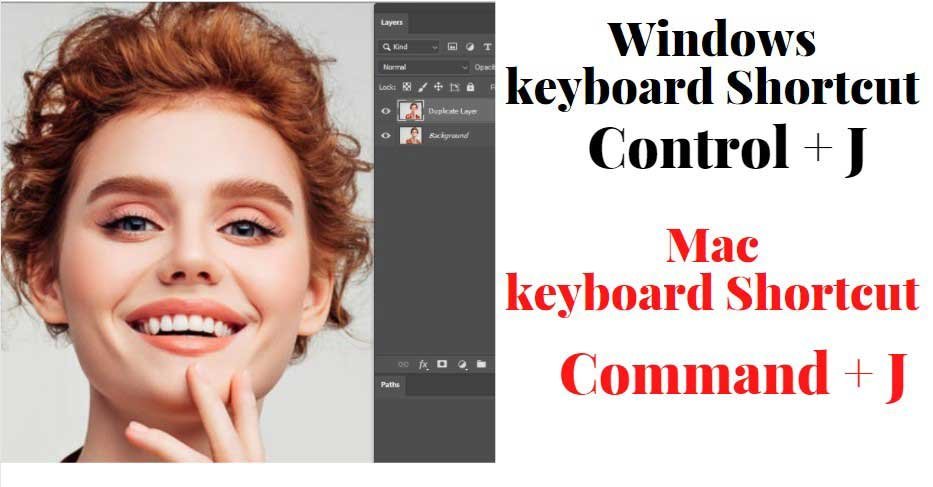
This creates a copy of your image. Work on the copy, not the original.
That way, you can restart without losing the source photo.
Step 2: Create a High-Contrast Check Layer
Click the plus icon in the Layers panel to create a new layer.
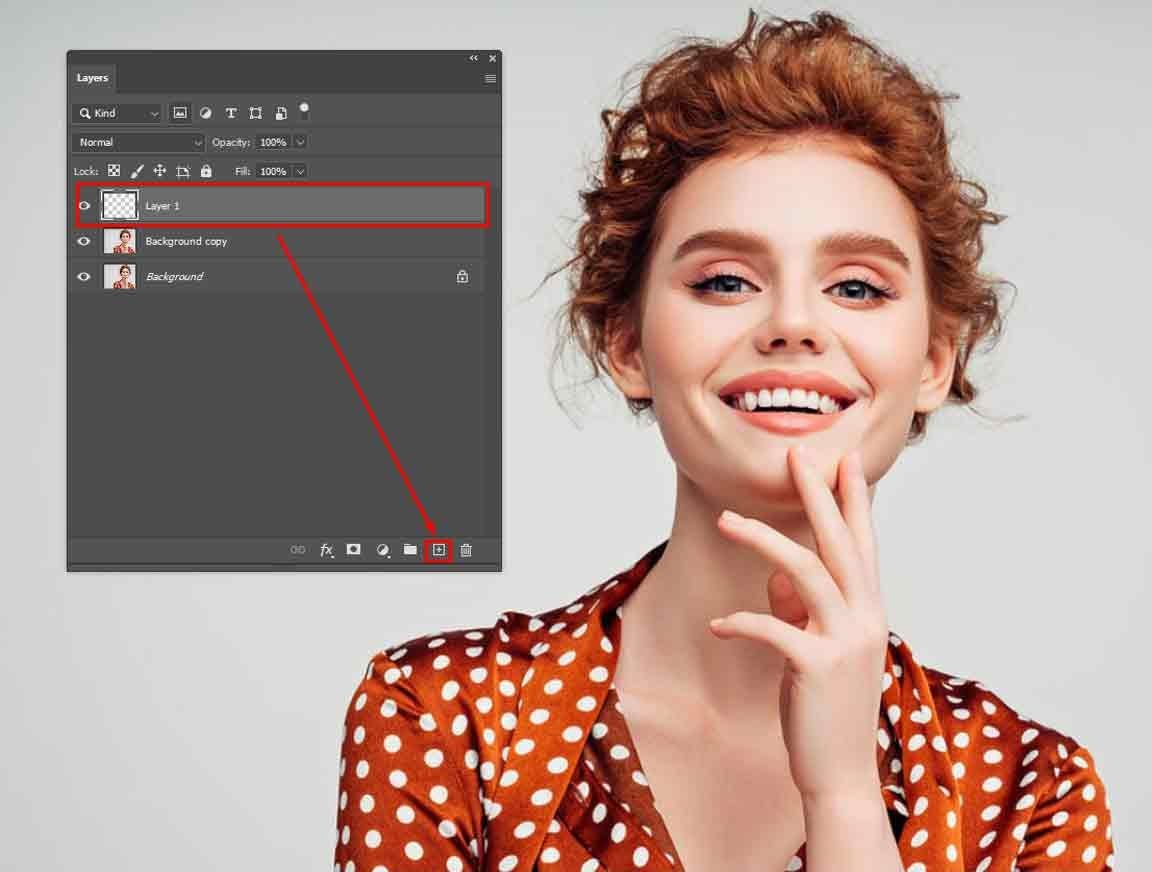
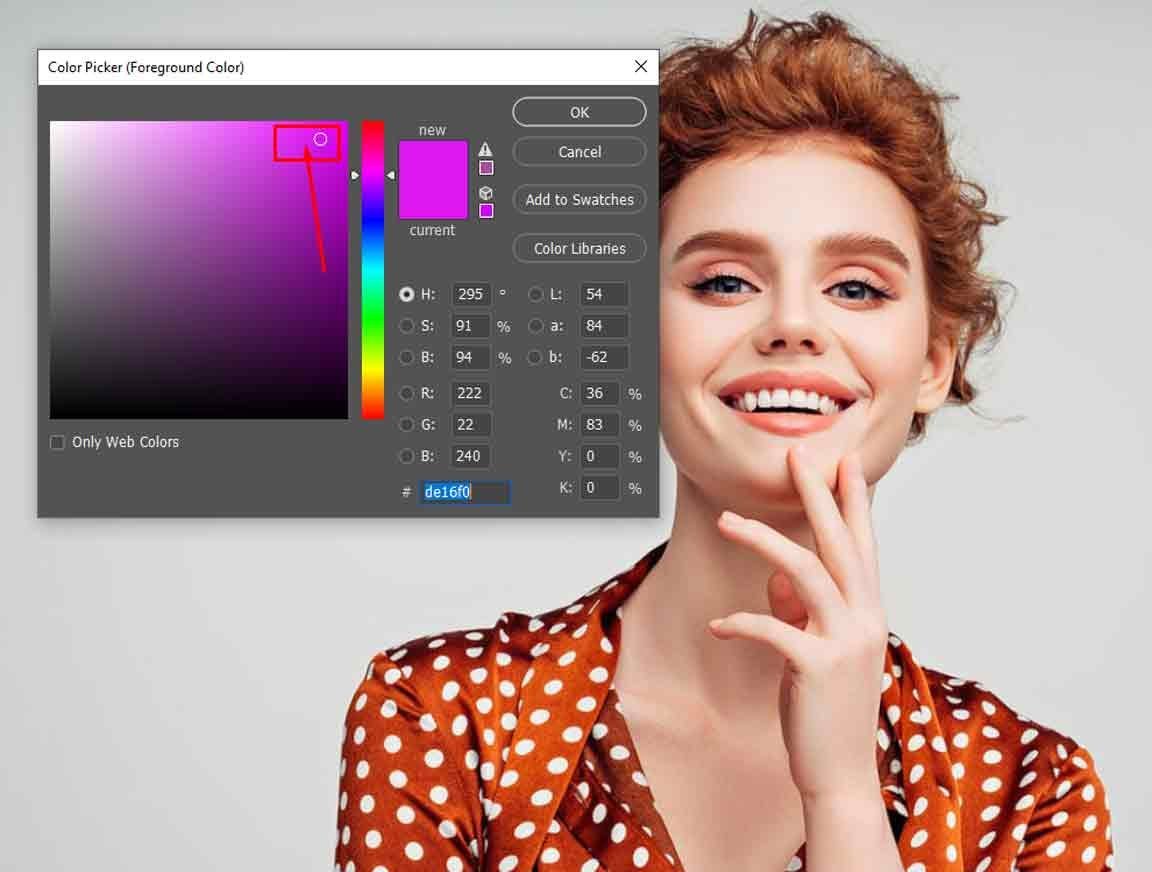
Pick a bright color that contrasts with the hair. Blue, green, pink, or yellow works well.
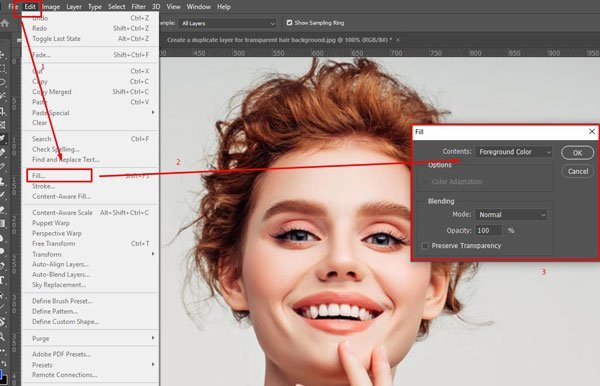
Go to Edit > Fill and fill the layer with that color. Then drag it under your image layer.
Then drag it under your image layer.
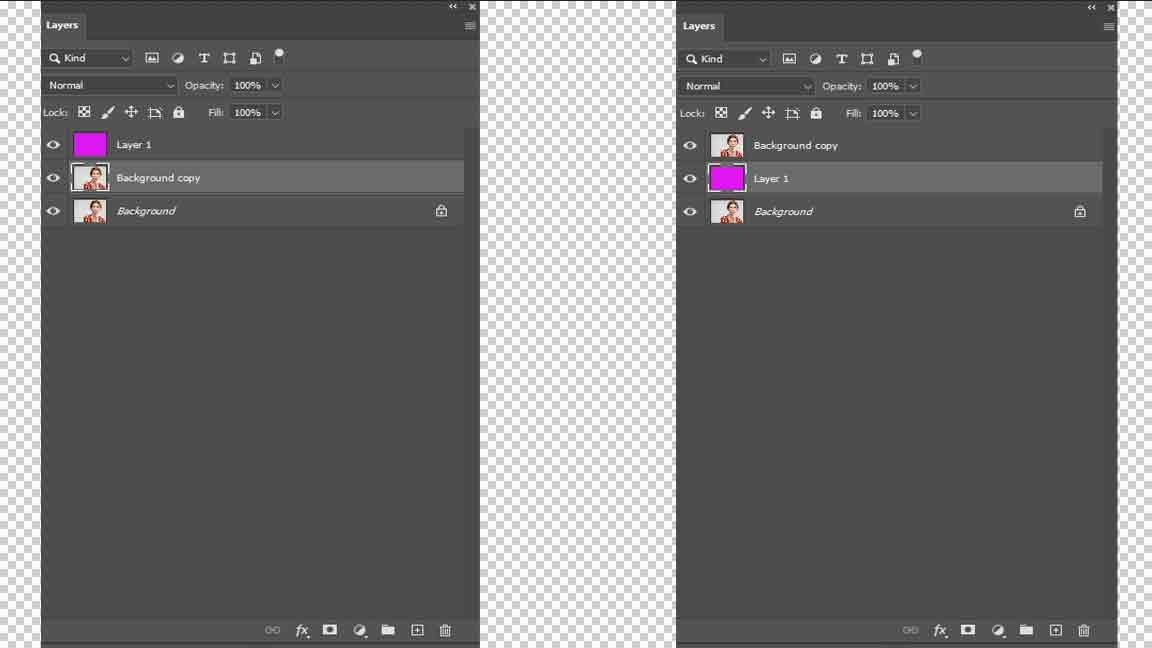
This check layer helps you spot rough edges fast.
Step 3: Select the Background Eraser Tool
Find the Eraser Tool in the toolbar.
Click and hold it, then choose Background Eraser Tool.
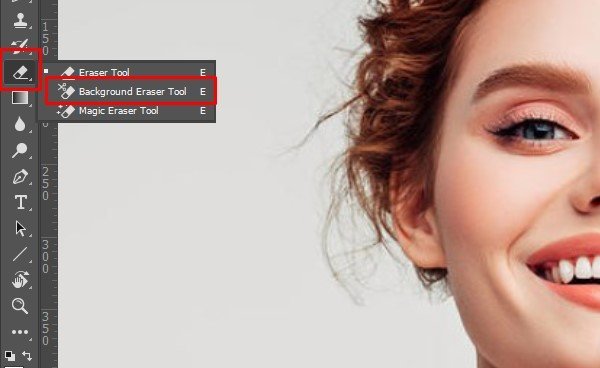
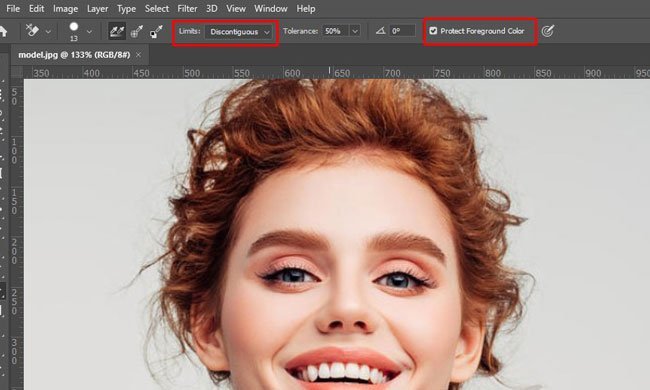
In the top settings bar, set Limits to Discontiguous. Start with Tolerance around 50%.
Turn on Protect Foreground Color when needed. This helps protect the subject while you erase nearby background.
Step 4: Erase Around the Hair
Use a small brush around the hair edge.
Move slowly. Zoom in often. Change the brush size when you move from fine strands to larger background areas.
If the tool removes hair, lower the tolerance. If the background stays, raise it a little.
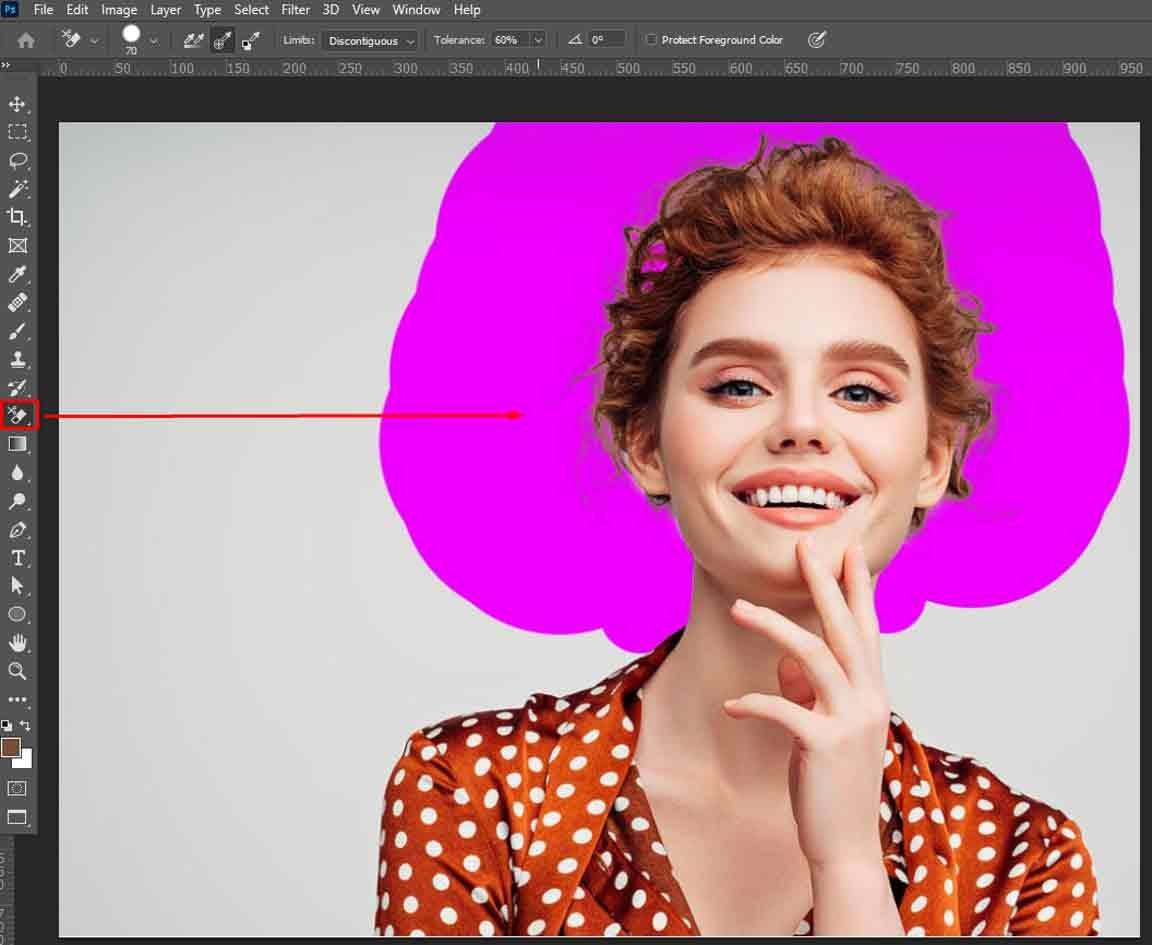
Step 5: Clean the Rest of the Background
Once the hair edge looks clean, use a larger brush.
Erase the rest of the background. Keep checking against your bright helper layer.
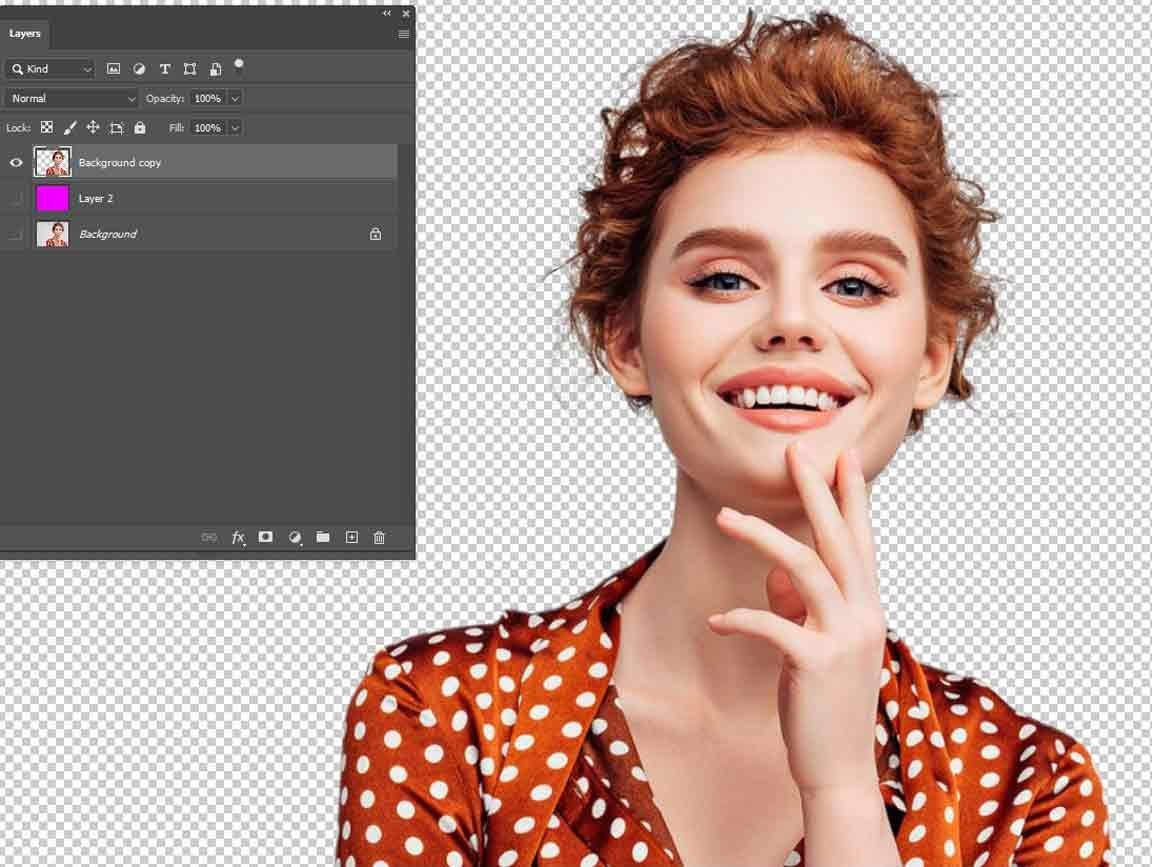
When finished, hide the helper layer. You should see the checkerboard background behind the hair.
Method 3: Channels for Hard Hair Cutouts
Channels are best for difficult images. Use this method when hair and background have low contrast.
This method takes more time. But it can save images that AI tools fail to handle.
Use Channels for:
- Curly hair on a busy background
- Dark hair on a dark background
- Light hair on a light background
- Fine strands with low contrast
- Hair on a patterned background
- Professional Photoshop hair background removal
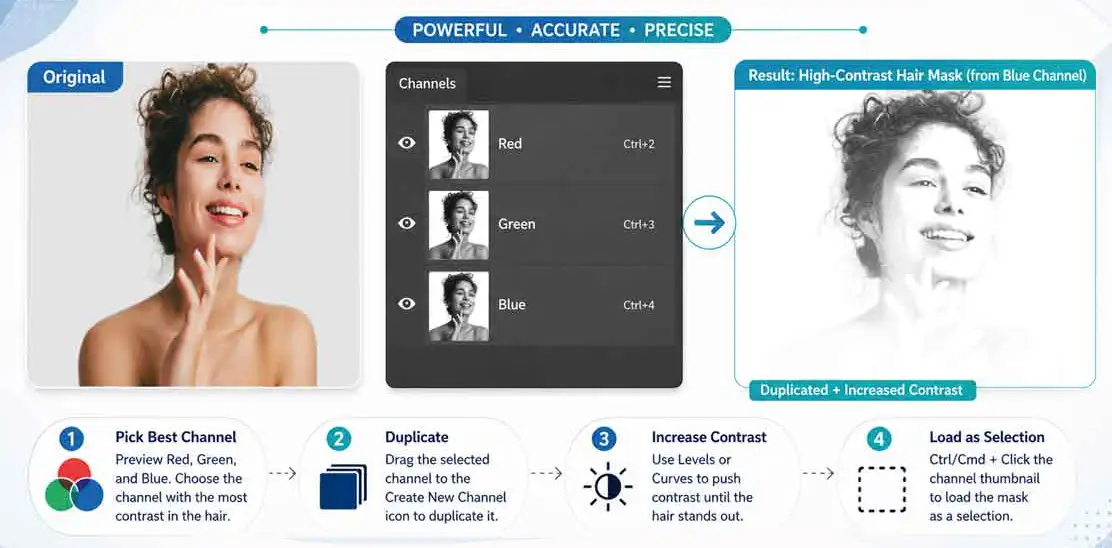
Step 1: Open the Channels Panel
Go to Window > Channels.
You’ll see Red, Green, and Blue channels. Click each one.
Look for the channel with the strongest contrast between hair and background.
Step 2: Duplicate the Best Channel
Right-click the best channel.
Choose Duplicate Channel. Work on the copy, not the original channel.
This copy will become your mask.
Step 3: Increase Contrast with Levels
Go to Image > Adjustments > Levels.
Make the subject darker and the background lighter. The goal is clear separation.
Hair and subject should stand apart from the background.
Step 4: Paint the Mask
Use a black or white brush to clean the mask.
Paint the subject solid. Paint the background clean. Keep soft hair edges where needed.
This part takes patience. But it gives you strong control over difficult hair.
Step 5: Load the Channel as a Selection
Hold Ctrl or Cmd and click the channel thumbnail.
Photoshop will load it as a selection. Return to the Layers panel and add a layer mask.
You may need to invert the mask. Go to Select > Inverse if the wrong area is selected.
Which Method Should You Use?
Not every image needs the same tool. Match the method to the photo.
| Image Type | Best Method | Speed | Hair Quality |
| Plain background | Remove Background | Fast | Good |
| Fine hair or flyaways | Select and Mask | Medium | Excellent |
| Solid background with control needed | Background Eraser | Medium | Good |
| Busy or low-contrast background | Channels | Slow | Excellent |
| Many ecommerce images | Professional masking | Fast for teams | Consistent |
Most people should start with Select Subject and Select and Mask. That gives the cleanest hair edge.
Use Remove Background when you need speed. Use Channels only when the image fights back.
How to Save Hair with Transparent Background
A clean cutout can still fail if you save it wrong.
To keep the background transparent, save the final image as PNG. JPEG does not support transparency.
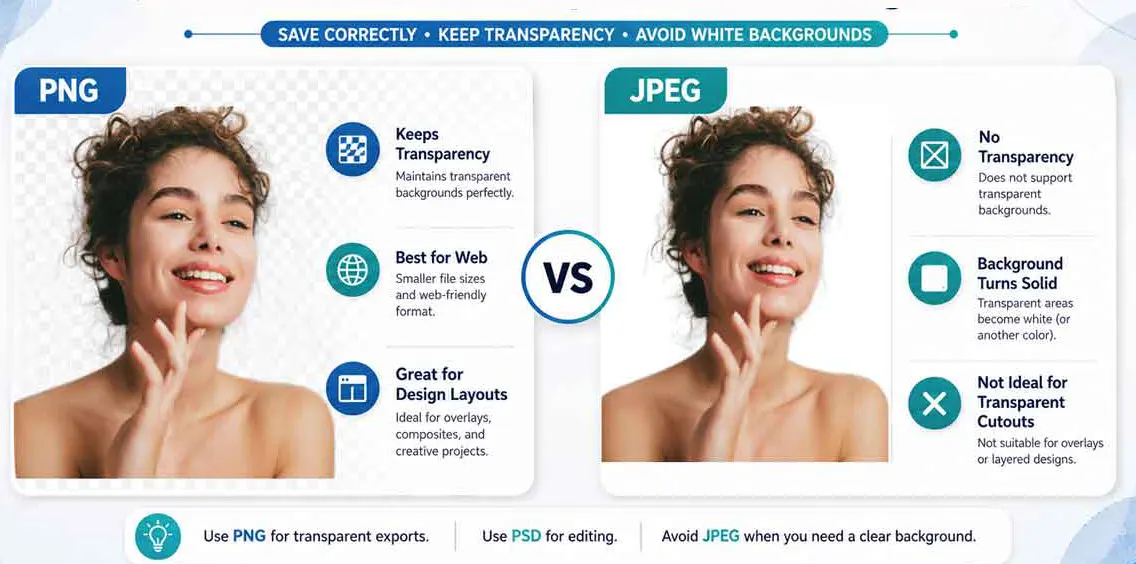
Save as PNG
Go to File > Save a Copy or File > Export.
Choose PNG. Make sure the background layer is hidden before saving.
This gives you a hair PNG transparent background file that works for websites, ads, ecommerce, and design layouts.
Keep a PSD Master
Also save a PSD file.
The PSD keeps your layers and masks. That means you can edit the hair again later.
Use PNG for final use. Use PSD for future edits.
Check the Final File
Open the PNG again after saving.
Make sure the background is still transparent. If it turns white, your background layer was still visible.
Hide or delete that background layer and export again.
How to Replace the Background Behind Hair
Sometimes you don’t want a transparent background. You want a new one.
That’s easy once the hair cutout is clean.
Add your new background image under the subject layer. Then check the hair edge again.
Use a black, white, and colored background test. This shows hidden halos fast.
For ecommerce, keep the background simple. For fashion or ads, match the light direction and color tone.
A clean mask makes the new background feel real.

How to Fill a Transparent Background in Photoshop
Some users want the opposite result. They remove the background first, then need to fill it with a solid color.
Create a new layer under the subject. Fill that layer with white, black, or your brand color.
This keeps the hair cutout safe. You can change the background color anytime without editing the hair again.
For product photos, white is often the safest option. For ads, a brand color can make the subject stand out.

Common Hair Cutout Problems and Fixes
Hair masking problems are normal. The trick is knowing what caused them.
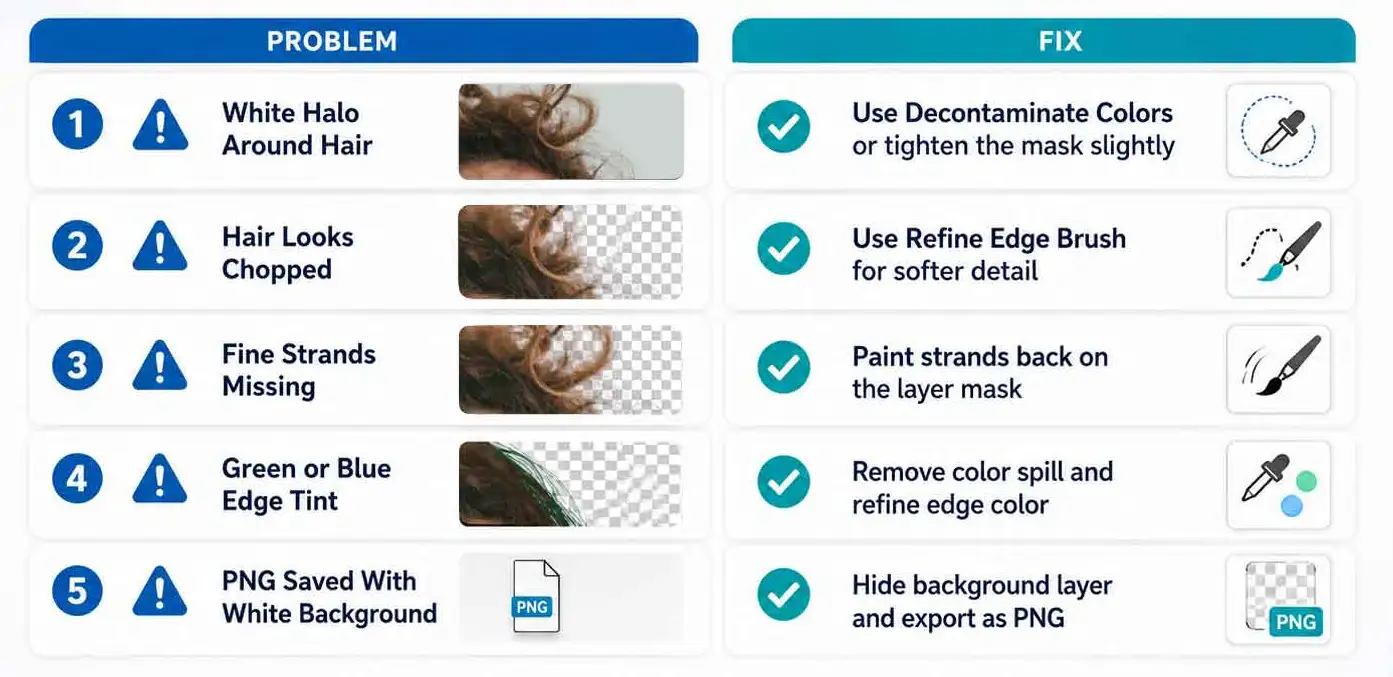
| Problem | Likely Cause | Best Fix |
| White halo around hair | Old background edge remains | Use Decontaminate Colors or Defringe |
| Hair looks chopped | Selection is too hard | Use Refine Edge Brush |
| Fine strands are missing | Mask is too tight | Paint strands back on the layer mask |
| Hair looks blurry | Too much Feather | Reduce Feather and refine manually |
| Green or blue edge tint | Color spill from old background | Use Decontaminate Colors |
| PNG saves with white background | Background layer is visible | Hide the background and export PNG |
| AI misses curly hair | Low contrast or busy backdrop | Try Channels or manual masking |
| Transparent area looks dirty | Old pixels remain | Test on a bright color layer |
Here’s the simple rule.
Don’t destroy the soft edge pixels. Hair needs tiny light and shadow details to feel natural.
If you remove too much, the cutout looks fake. If you leave too much, the old background shows.
The best result sits in the middle.
Professional Hair Masking Quality Checklist
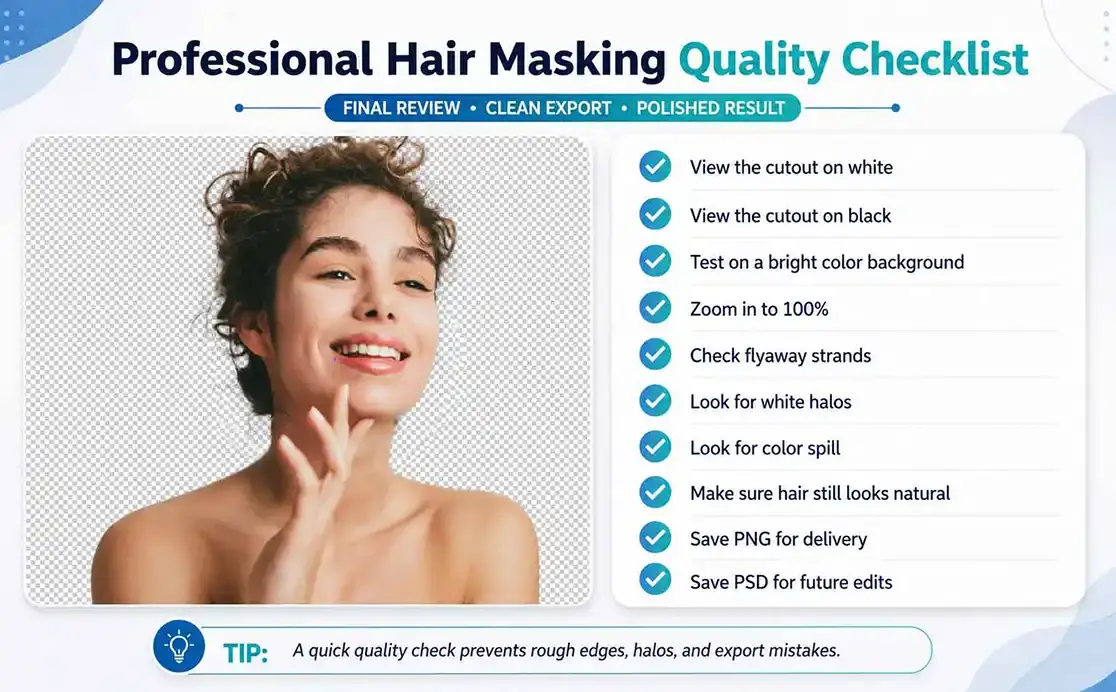
Before you publish or send the image, run this quick check.
- View the cutout on white
- View the cutout on black
- View the cutout on a bright color
- Zoom in to 100%
- Check flyaway strands
- Look for white halos
- Look for green or blue color spill
- Check if hair still looks natural
- Save a PNG for final use
- Save a PSD for future edits
This small check prevents embarrassing mistakes.
It also helps your transparent background hair image look clean across websites, ads, catalogs, and social posts.
AI Hair Background Remover vs Photoshop
AI background remover tools are useful. They’re fast, simple, and good for basic images.
But they often struggle with fine hair. They may leave halos, blur strands, or remove flyaways.
Photoshop gives you more control. You can refine the edge, fix color spill, and edit the mask by hand.
Use AI tools for quick drafts. Use Photoshop for polished work.
Use professional masking when the image needs to look clean at scale.
DIY or Professional Hair Masking?
DIY works when you have one or two simple images.
You can follow this guide and get a solid result. That feels good. You learn a real skill, and you stay in control.
But volume changes everything.
If you have hundreds of model photos, fashion images, wigs, fur, or ecommerce shots, manual editing gets heavy fast.
That’s when a professional hair masking service makes sense.
Our team can help with clean hair edges, soft masks, and transparent PNG delivery. You can also view our high-quality hair masking case study to see how this works in real projects.
Need broader editing support? Explore our background removal service, product photo editing service, and work samples.
Want to test the quality first? Start with a free trial.
Related Photoshop Guides
Want to sharpen your editing workflow?
Read these next:
- How to cut out an image in Photoshop
- Photoshop masking guide
- Layer mask in Photoshop
- Clipping path vs image masking
- How to make a clipping mask in Photoshop
These guides help you understand when to use masks, paths, and cutouts.
That matters because hair is never a basic edge.
FAQs About Hair Transparent Backgrounds
How do I remove background from hair in Photoshop?
Use Select Subject first, then open Select and Mask. Paint around the hair with the Refine Edge Brush. Use Decontaminate Colors if you see old background color around the strands.
How do I make a transparent background in Photoshop?
Unlock the image layer and remove or hide the background. You can use Remove Background, Select Subject, or a layer mask. Save the final file as PNG to keep the background transparent.
What is the best tool to cut out hair in Photoshop?
Select and Mask is the best tool for hair. It includes Refine Edge Brush and Refine Hair. These tools help preserve soft strands, curls, and flyaways.
How do I remove background behind hair without losing strands?
Start with Select Subject, then open Select and Mask. Use the Refine Edge Brush only around the hair edge. Output the result as a New Layer with Layer Mask.
Why does my hair cutout have a white halo?
A white halo appears when old background pixels stay around the hair. Use Decontaminate Colors, Defringe, or a slightly tighter mask edge. Always test the cutout on dark and light backgrounds.
Is transparent background the same as PNG?
No. Transparency is the clear area behind the subject. PNG is a file format that can keep that transparent area. JPEG cannot keep transparency.
How do I save hair with no background?
Hide the background layer and export the image as PNG. Reopen the PNG to check it. If you see white, the background layer was still visible during export.
Why is my Photoshop PNG not transparent?
Your background layer may still be visible. Hide the background layer before export. Then save as PNG, not JPEG.
How do I fill a transparent background in Photoshop?
Create a new layer under the subject. Fill it with a solid color using the Paint Bucket Tool or Edit > Fill. This adds color behind the hair without changing the mask.
Can I remove hair background in older Photoshop versions?
Yes, but the workflow changes. Older Photoshop versions may not have the latest AI Remove Background or Refine Hair tools. You can still use Background Eraser, Channels, and layer masks.
Why can’t I remove the background in Photoshop?
The layer may be locked, the wrong layer may be selected, or the image may have low contrast. Unlock the layer, select the subject layer, and try Select and Mask for better control.
How do I change the background color behind hair in Photoshop?
Create a new layer under the subject. Fill it with your chosen color. Then check the hair edge for halos or color spill before saving.
Final Thoughts
A clean hair transparent background is not about one magic button.
It’s about choosing the right method for the image.
Use Select and Mask for clean strands. Use Remove Background for speed. Use Background Eraser for manual control. Use Channels when the image is difficult.
Then test the final cutout on different backgrounds.
That final check is what separates a rough edit from a polished one.
Need clean hair cutouts without spending hours in Photoshop? Send a few images through our free trial and see the difference.

Shahidul Islam
Founder & Managing Director at Clipping Photo Experts
Helping photographers, brands, and ecommerce businesses create stunning visuals through professional photo editing, image masking, retouching, and post-production services. Passionate about sharing practical Photoshop and photography insights based on real-world experience.